🔧 驱动程序卸载教程
🚀 第一步:打开卸载界面
我们为您准备了最简单的👉 一步直达法 👈,不用在菜单里到处找。
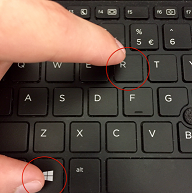
- 👀 请看键盘左下角,找到 Windows徽标键 (像窗户一样的图标 ⊞)。
- 🖐️ 按住 Win键 不松手,然后同时按一下 R键。
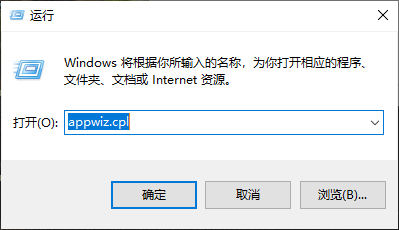
- 屏幕左下角会出现一个“运行”小窗口。
- 在输入框里输入这串代码:appwiz.cpl
- 点击 “确定”。
 |
| 
💡 小贴士: 如果您觉得键盘操作太难,也可以直接在电脑桌面的搜索框里输入“控制面板”,然后点击里面的“卸载程序”蓝字,效果是一样的。
………………………………………………
🚀 Step 1: Open the Uninstallation Interface
We have prepared the simplest 👉 One-Step Shortcut 👈 for you, so you don’t have to search through menus.
- 👀 Look at the bottom left of your keyboard and find the Windows Logo Key (the icon that looks like a window ⊞).
- 🖐️ Hold down the Win key, and then press the R key at the same time.
- A small “Run” window will appear at the bottom left of the screen.
- Type this code into the input box: appwiz.cpl
- Click “OK”.
|
💡 Tip: If you find the keyboard shortcut too difficult, you can also search for “Control Panel” in the desktop search bar, then click the blue text “Uninstall a program” inside. The effect is the same.
🔍 第二步:找到旧驱动 (关键步骤)
现在您会看到电脑里安装的所有软件列表。
- 请在列表中寻找以 “Windows 驱动程序包” 开头的名字。
- 或者寻找包含 我们产品名称/品牌名称 的英文(例如 Hewlett-Packard、HP 等)。
👇 请参照下图寻找目标:

⚠️ 注意: 就像上图一样,同一个设备可能会有多个相关的驱动(比如 USB、Printer、Image 等),请把它们全部找出来。
………………………………………………
🔍 Step 2: Locate the Old Driver (Critical Step)
Now you will see a list of all software installed on your computer.
- Please look for names starting with “Windows Driver Package” in the list.
- Or look for English text containing our product name/brand name (e.g., Hewlett-Packard, HP, etc.).
👇 Please refer to the image below to find your target:
⚠️ Note: Just like in the image above, a single device may have multiple related drivers (such as USB, Printer, Image, etc.). Please find all of them.
🗑️ 第三步:彻底删除
- 双击 您找到的驱动程序名称(或者右键点击它,选择“卸载/更改”)。
- 如果电脑弹出窗口问您“是否确定?”,请点击 “是” (Yes) 或 “确定”。
- 等待进度条走完。
- 重复此步骤,直到列表中没有相关的驱动程序为止。
………………………………………………
🗑️ Step 3: Completely Delete
- Double-click the driver name you found (or right-click it and select “Uninstall/Change”).
- If a window pops up asking “Are you sure?”, please click “Yes” or “OK”.
- Wait for the progress bar to finish.
- Repeat this step until there are no related drivers left in the list.
🔄 第四步:重启电脑 (非常重要!)
为了让卸载彻底生效,请务必执行最后一步:
- 点击屏幕左下角 “开始” 菜单。
- 点击 电源 按钮。
- 选择 “重启”。
电脑重新开机后,旧驱动就清理干净啦!现在您可以放心安装新驱动了。🎉
………………………………………………
🔄 Step 4: Restart Your Computer (Very Important!)
To ensure the uninstallation takes full effect, make sure to perform this final step:
- Click the “Start” menu at the bottom left corner.
- Click the Power button.
- Select “Restart”.
After the computer restarts, the old drivers will be completely cleaned up! Now you can safely install the new driver. 🎉